How Do I Experience It?
In my previous article, “There’s More Than One Way Into the Internet,” I explored the idea that the internet does not necessarily have to rely on a single naming system.
But reading about another way is one thing.
Actually experiencing it is another.
Handshake operates alongside the traditional DNS most of us use every day. That means a Handshake name can exist, yet your phone or browser may not know how to find it.
So this time, rather than just talking about Handshake, let’s actually use it.
Experience Handshake on Your iPhone
For this example, we’re going to use an iPhone and an app called ShakeStation Resolve.
ShakeStation Resolve gives your iPhone a way to resolve names that exist within the Handshake naming system.
Download ShakeStation Resolve from the App Store and open it.
When first installed, it should show:
DISABLED
Tap Open Settings.
Then go to:
Settings → General → VPN & Device Management → DNS
Under DNS Proxy and DNS Settings, select:
ShakeStation — Resolve
Return to ShakeStation Resolve and check that it now shows:
ENABLED
Your iPhone now has a way to find Handshake names.
Now Let’s Try One
Open your browser and enter:
If the name resolves, your device has found own.the through Handshake.
Depending on the browser you use, you may see a certificate security warning.
Resolving a name and trusting the HTTPS certificate presented by a website are two different things.
A browser warning should not simply be ignored. Only continue if you understand the warning and trust the destination you are attempting to visit.
Now Try Something Different
Here’s where it gets a little more interesting.
Enter:
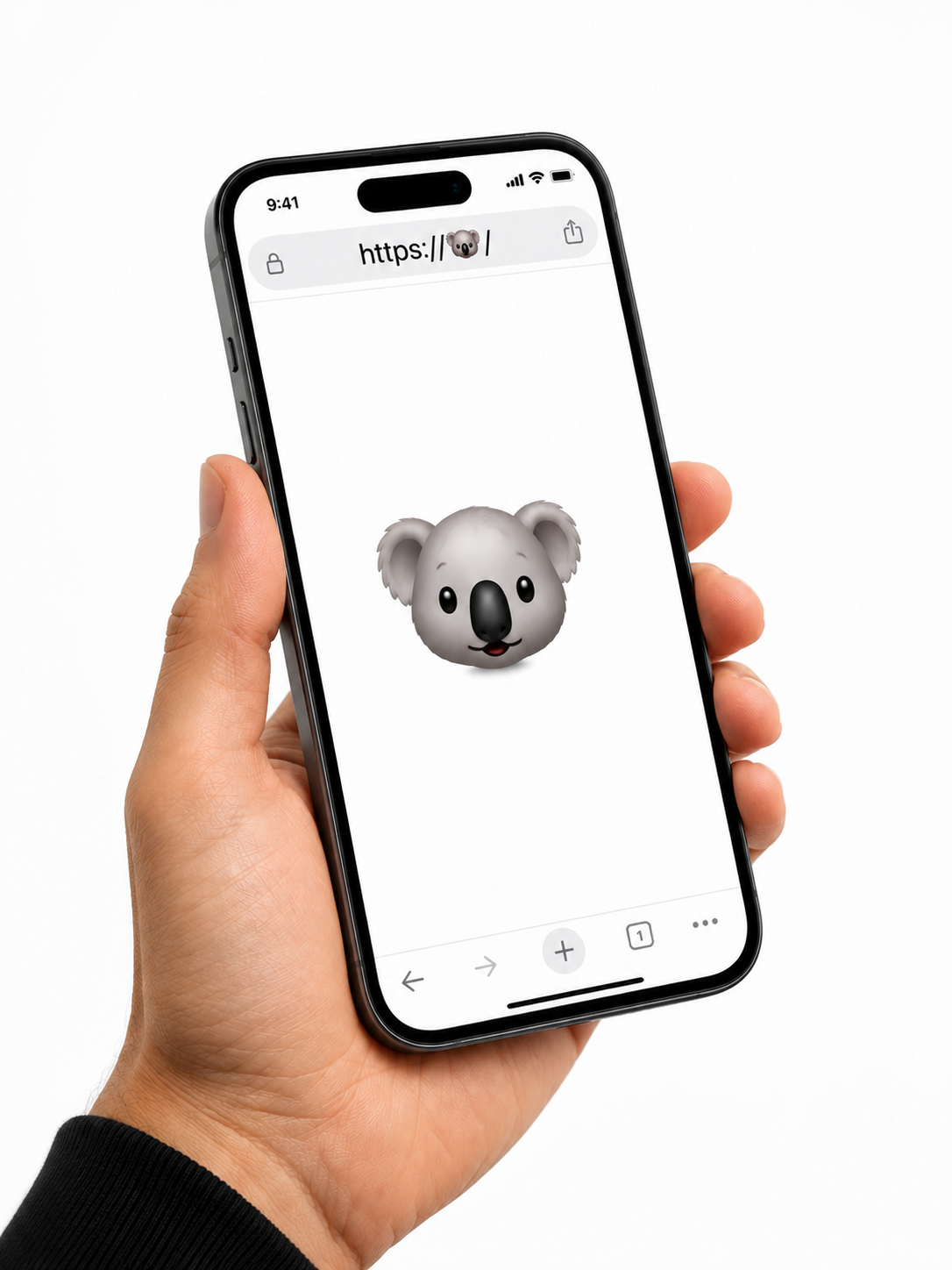
Yes. The koala emoji is the address.
If everything is configured correctly, this Handshake name should take you to hns.au.
Think about what you just did.
You didn’t type .com.
You didn’t type .net.
You didn’t even type a conventional domain name.
You entered:
🐨/
And your device knew where to look.
Switch It Back
When you’ve finished experimenting, return to:
Settings → General → VPN & Device Management → DNS
Select:
Automatic
Then try the Handshake addresses again.
The names haven’t disappeared.
The websites haven’t disappeared.
You’ve simply changed the naming system your iPhone is using to find them.
And that brings us back to the previous article:
There really is more than one way into the internet.
This time, you didn’t just read about it.
You experienced it.